Setup guide
Add the ticker card to your stream
Show a live Decibel price on stream. Set it up once in OBS Studio, Streamlabs Desktop or a StreamElements overlay, then go live on Kick or Twitch as usual.
Set up the card
Four steps. You only do this once.
Which app do you stream with?
-
Make your card and copy its URL
In the card editor, pick your market and style, then click Copy URL. Keep the size shown under the URL, for example 790 × 190. You need it in step 3.
Open the card editor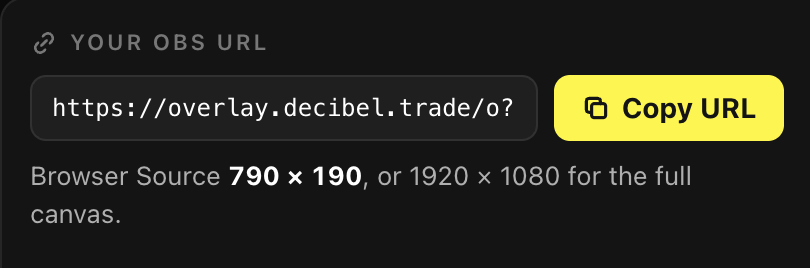
-
Add a Browser source
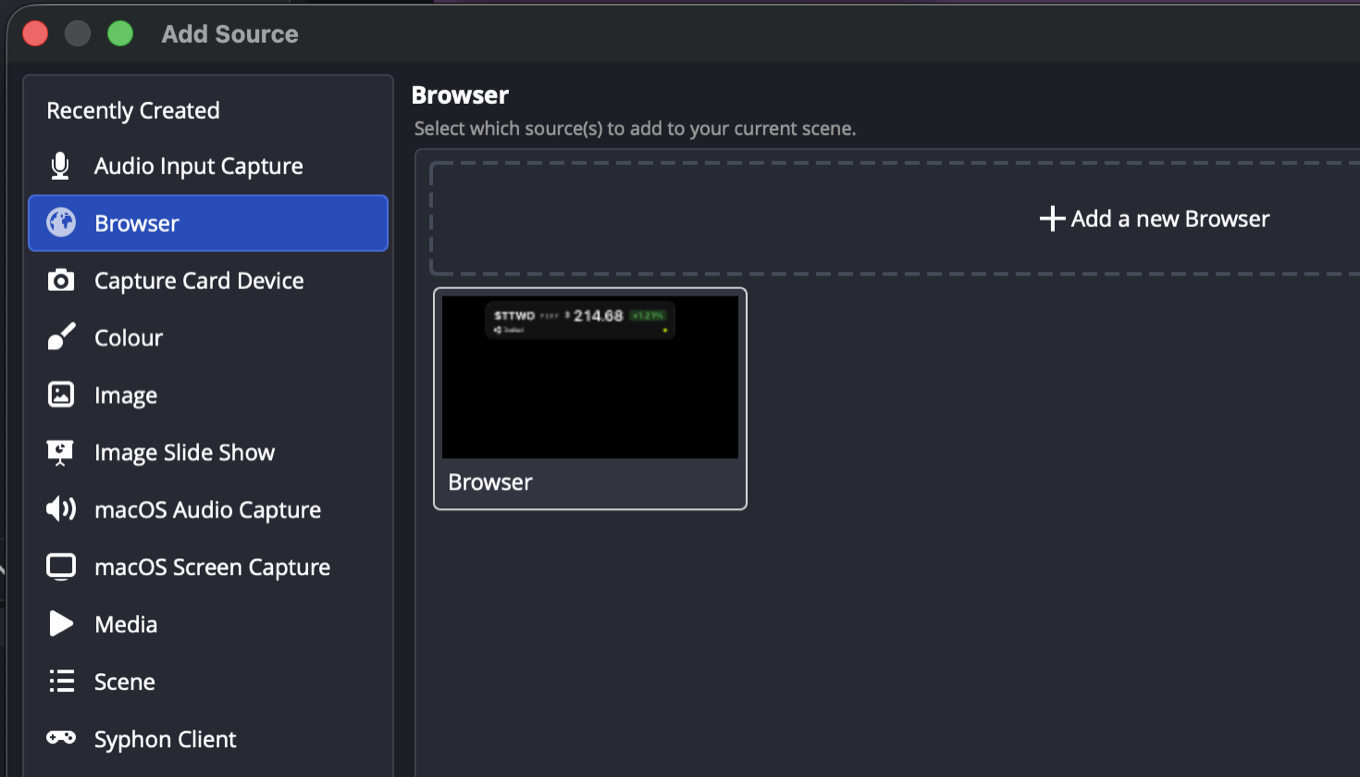
Click under the Sources box. In Add Source, pick Browser under Source Type, then click Add a new Browser.
On older versions of OBS, + opens a menu instead: pick Browser, name it, then click OK.
-
Paste the URL and set the size
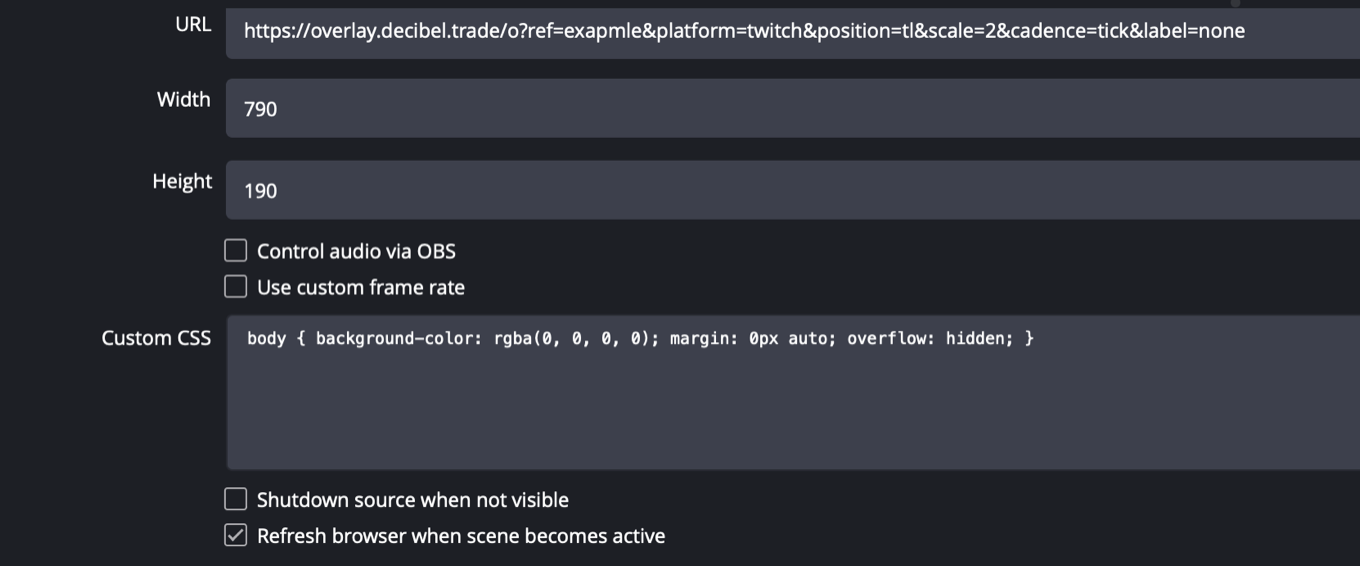
In the window that opens, paste the URL into URL and set Width and Height to the size from step 1. Tick Refresh browser when scene becomes active, leave Custom CSS and the rest as they are, and click OK.
-
Move it to a corner
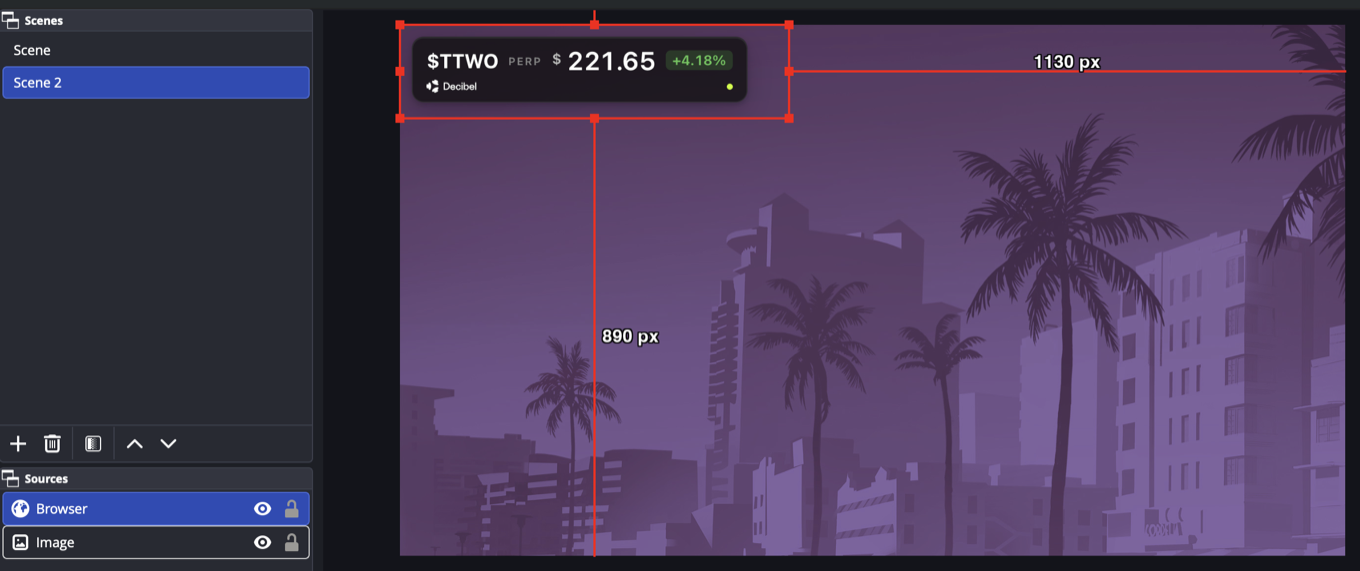
Drag the card to the corner you picked in the card editor.
On a 1920 × 1080 canvas you can set the source to 1920 × 1080 instead. The card then sits in its corner without dragging.
-
Make your card and copy its URL
In the card editor, pick your market and style, then click Copy URL. Keep the size shown under the URL, for example 790 × 190. You need it in step 3.
Open the card editor
-
Add a Browser Source
Click next to Sources. Pick Browser Source and click Add Source.
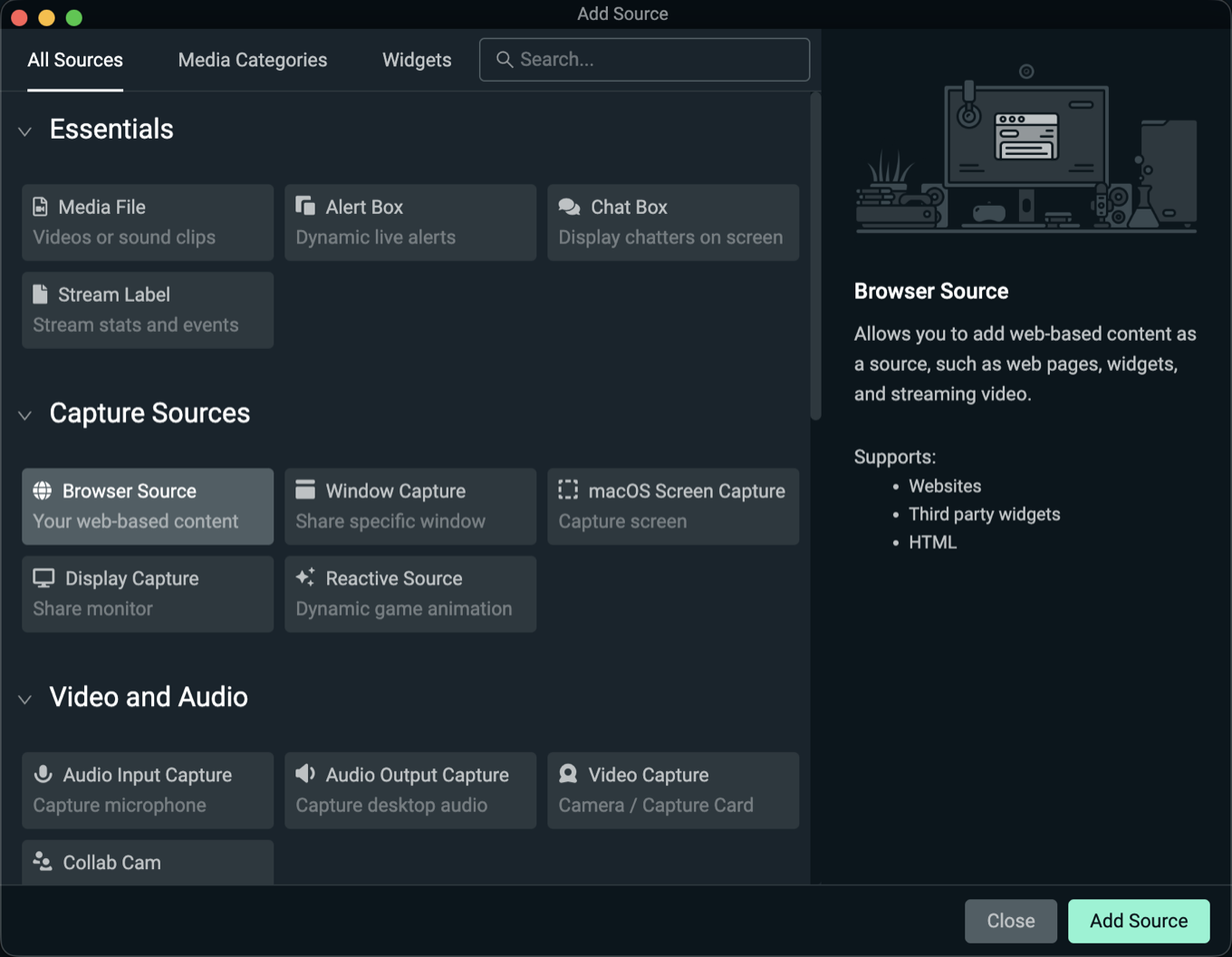
Name it, for example Decibel Overlay, and click Add Source again.
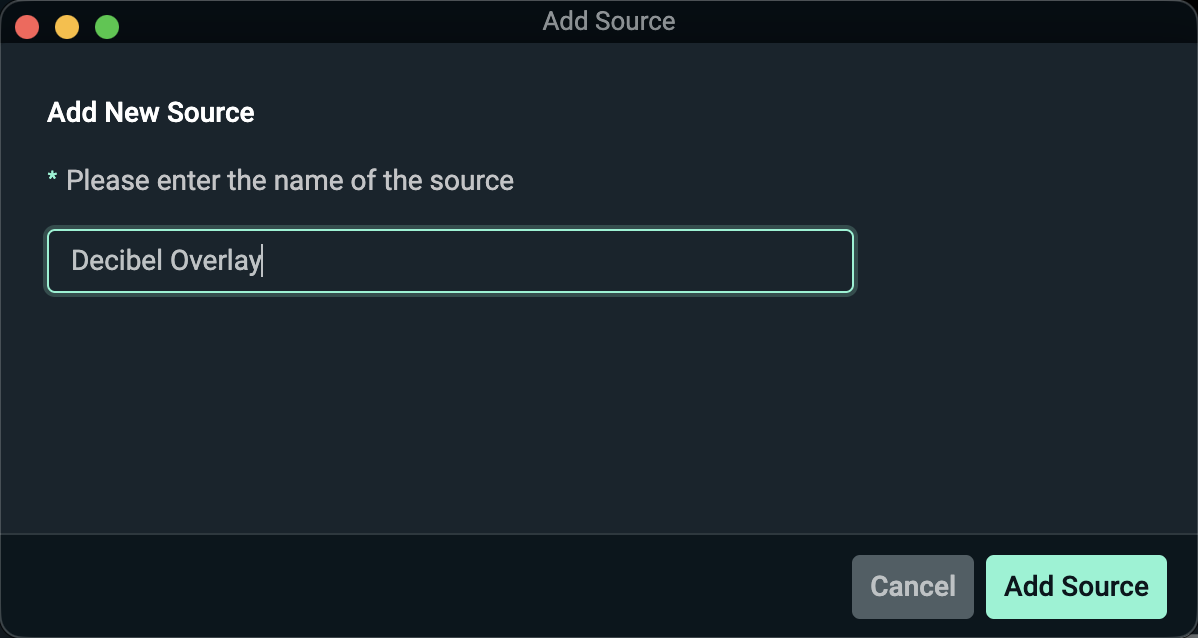
If you already have browser sources, Streamlabs lists them first. Choose Add a new source instead.
-
Paste the URL and set the size
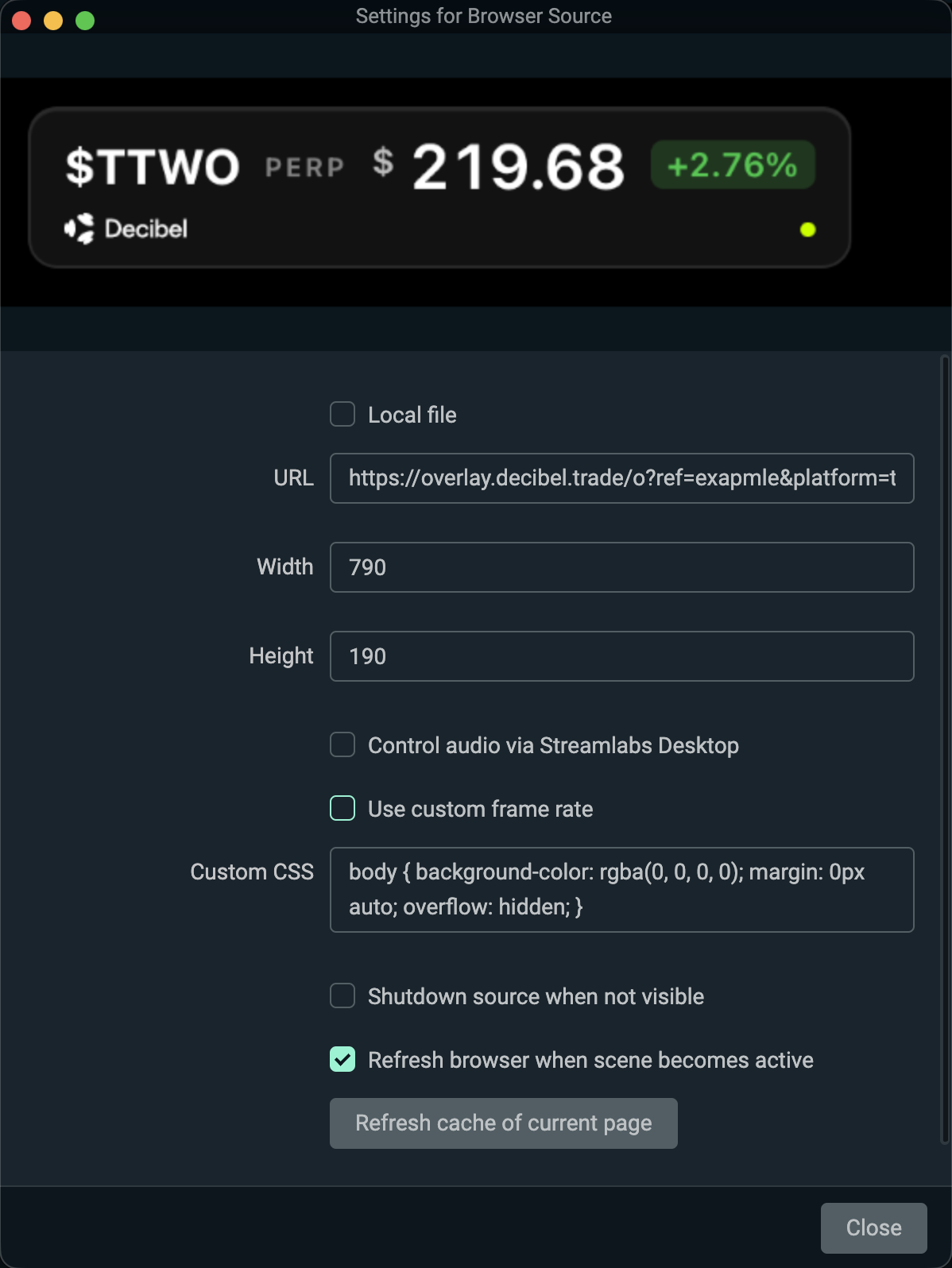
In Settings for Browser Source, paste the URL into URL and set Width and Height to the size from step 1. Tick Refresh browser when scene becomes active, leave Custom CSS as it is, and click Close. Streamlabs saves as you go.
-
Move it to a corner
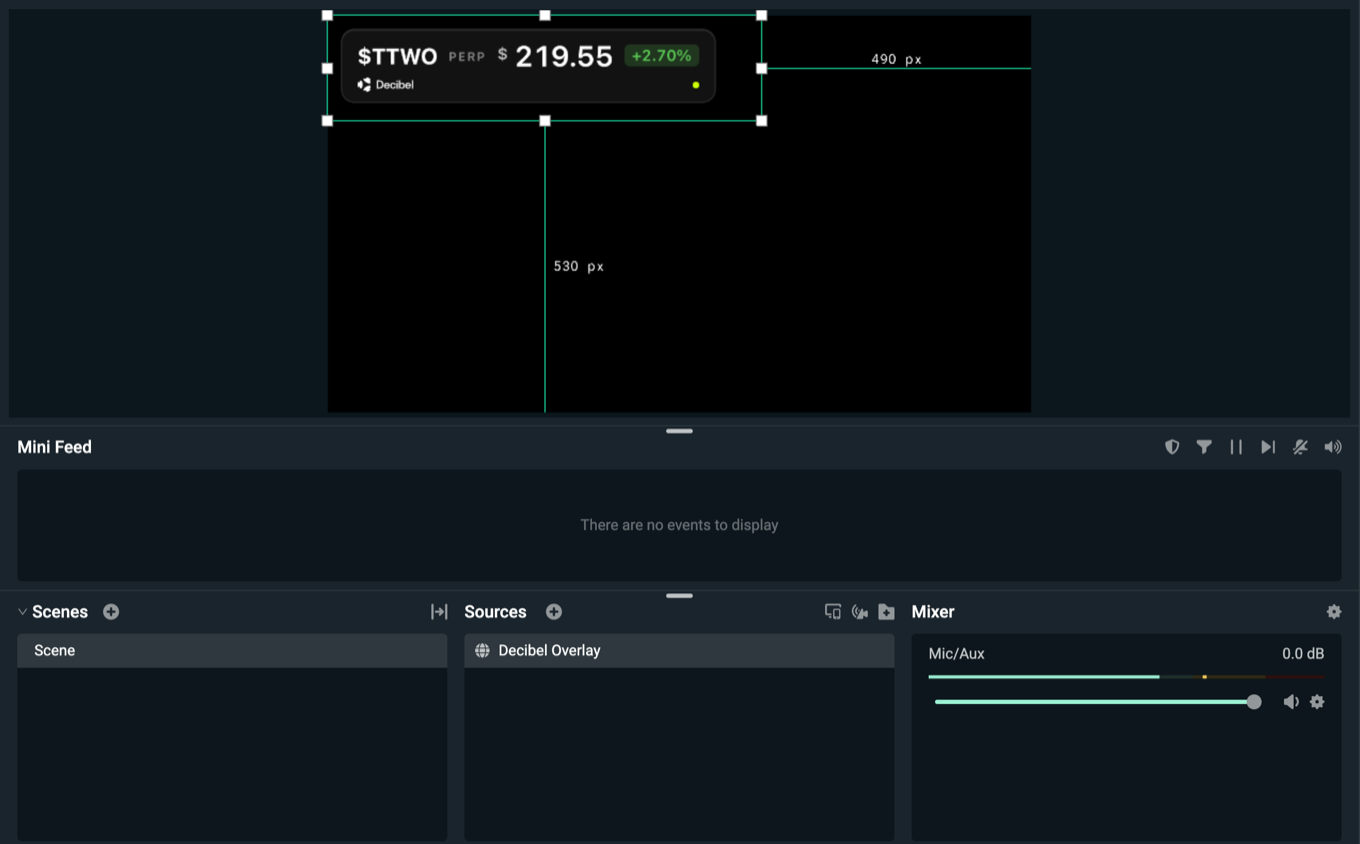
Drag the card to the corner you picked in the card editor.
-
Make your card and copy its URL
In the card editor, pick your market and style, then click Copy URL. Keep the size shown under the URL, for example 790 × 190. You need it in step 4.
Open the card editor
-
Add a Custom widget
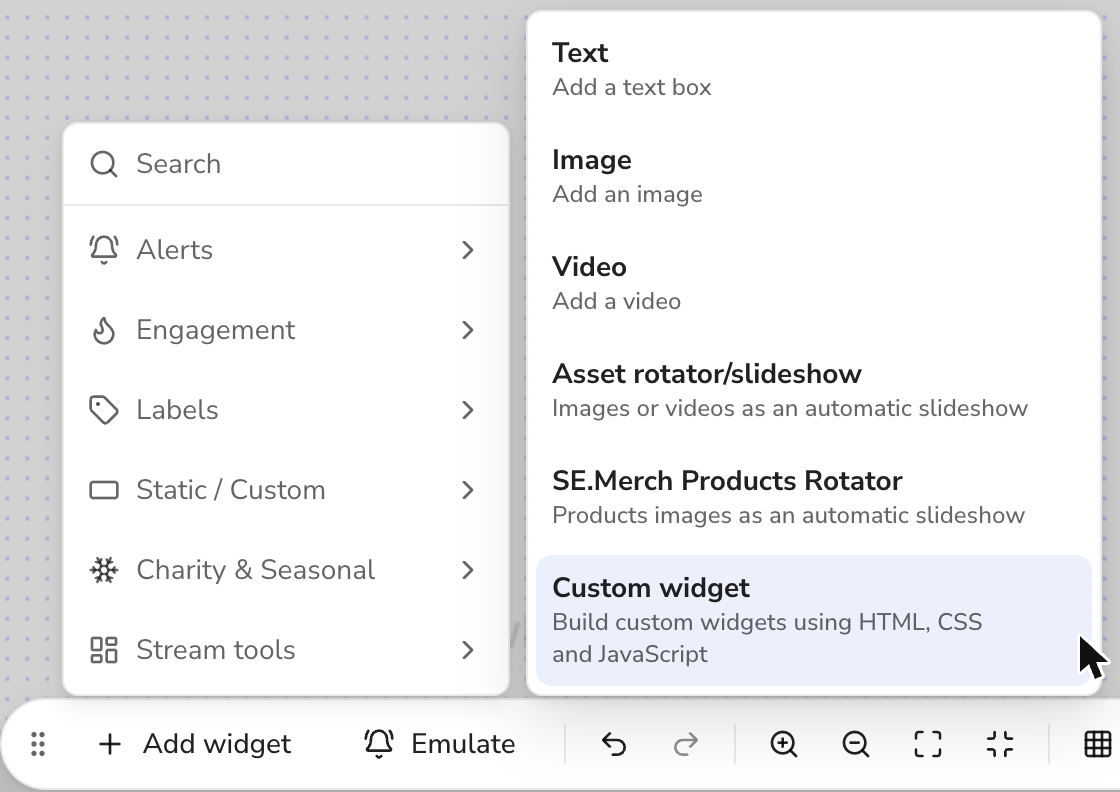
In StreamElements, open Streaming tools, then Overlays, and edit the overlay you stream with, or click New overlay. Click Add widget, then Static / Custom and Custom widget.
-
Put the card in the widget
Under Settings, click Open Editor. In the HTML tab, replace everything with this line, with your URL between the first quotes:
<iframe src="YOUR_CARD_URL" style="width:100%;height:100%;border:0"></iframe>Then delete everything in the CSS and JS tabs and click Done.
The widget's sample CSS and JS are for an event list. Left in, the CSS cuts the card off.
-
Set the size and move it to a corner
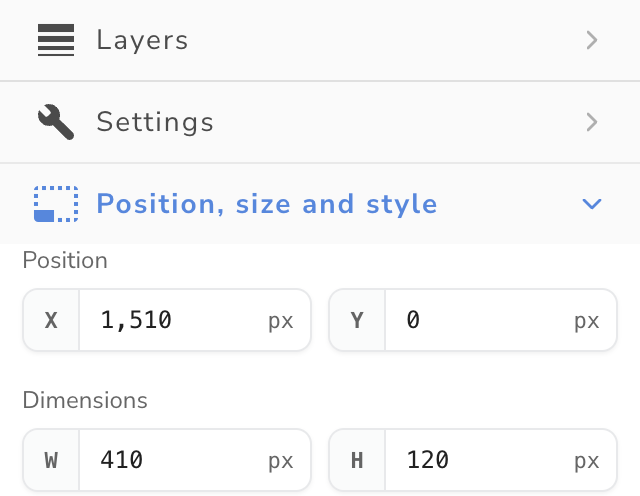
Open Position, size and style and set W and H to the size from step 1. Drag the card to the corner you picked in the card editor, then click Save.
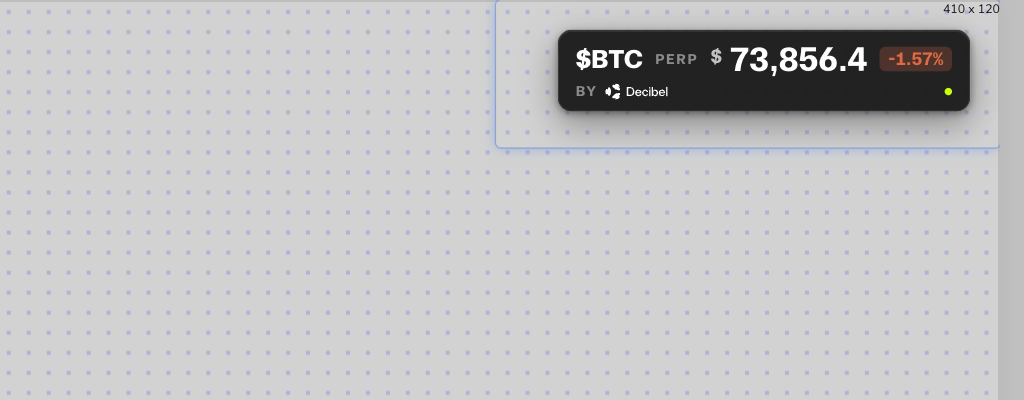
If this overlay isn't in OBS or Streamlabs yet, copy its URL with the link icon at the top of the overlay editor and add it as a Browser source of 1920 × 1080.
You're set
Go live as usual. The card is part of your scene, so viewers see it on Kick, Twitch or wherever you stream.
Go live on Kick or Twitch
There is nothing to set up on Kick or Twitch for the card. It goes out with the rest of your scene.
OBS isn't connected to Kick yet
- In Kick's Creator Dashboard, copy your Stream URL and Stream Key. Kick's guide shows where they are.
- In OBS, click Settings under Controls, then Stream.
- Pick Custom... under Service.
- Paste the Stream URL into Server and the key into Stream Key, then click OK.
OBS isn't connected to Twitch yet
- In OBS, click Settings under Controls, then Stream.
- Pick Twitch under Service.
- Click Connect Account (recommended) and log in to Twitch.
- Click OK.
Troubleshooting
The card shows its state in its bottom right corner. A dot on its own, , means it's live.
The card says CONNECTING
It's loading your market and the first price. Give it a few seconds. If it changes to NO FEED, see below.
The card says NO FEED
No price arrived in the first 10 seconds. Check that your computer is online. The card keeps trying on its own and goes live with the first price.
If it doesn't recover, open the source's properties and click Refresh cache of current page.
The card says STALE
Prices paused for more than 10 seconds. The card dims, reconnects on its own and goes back to normal with the next price.
The card says NO MARKET
The market in your URL isn't on Decibel. Pick a market again in the card editor, copy the new URL and paste it into the source.
The card says SIM
It's showing demo prices because the URL has sim=1 in it. Copy your URL again from the card editor.
Part of the card is cut off
The source is smaller than the card. Set Width and Height to the size shown in the card editor. The size changes with the market and style you pick.
In a StreamElements widget, also check that its CSS tab is empty.
I can't see the card
In Sources, check that the card is visible and sits above your game or camera in the list.
OBS says "Couldn't load that page!"
OBS couldn't open the URL. Copy it again from the card editor, paste it into the source and check that you're online.
The card looks blurry
Make it bigger with Size in the card editor instead of stretching the source, then use the new URL and size.
Questions
How do I change the market or style later?
Make the change in the card editor, copy the new URL and paste it over the old one in the source's URL field. If the size changed, update Width and Height too.
Is the price live?
Yes. The card shows the Decibel mark price and its change over the last 24 hours. It updates every second by default; pick Every tick or 3 s under Updates in the card editor.
Does the card show my channel name?
No. Channel name and Platform in the card editor are optional and never appear on the card.
Do I need to share my stream key?
No. The card only needs its URL. Your stream key stays in OBS or Streamlabs.